In Teams switch via the left menu to the “Files” App:
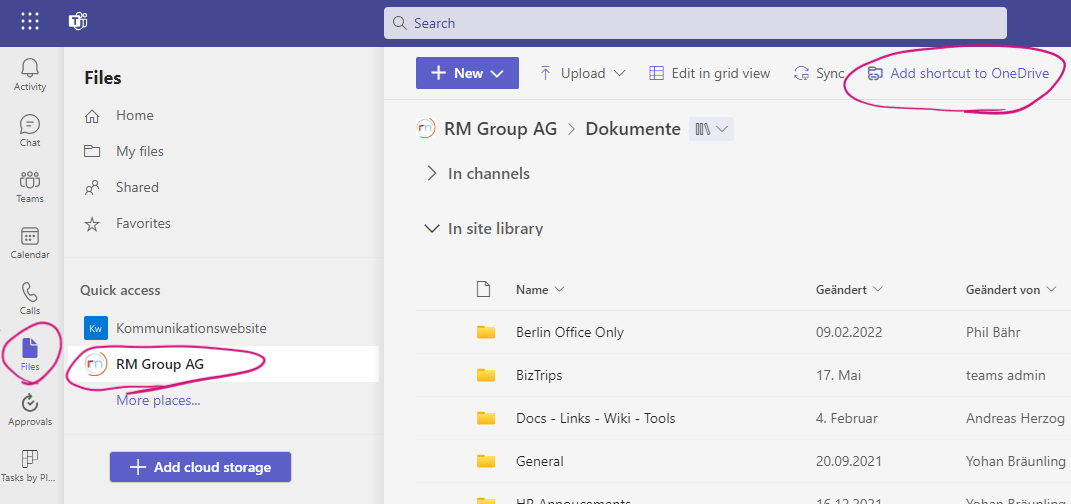
Select the Team of which you would like to add the files; In this case, we select the Team “RM Group AG” and click the button “Add shortcut to OneDrive” on the right side of the top menu bar.
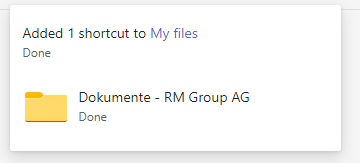
You will now see the following notification:
Navigate to your Windows Explorer and choose in the left column your OneDrive
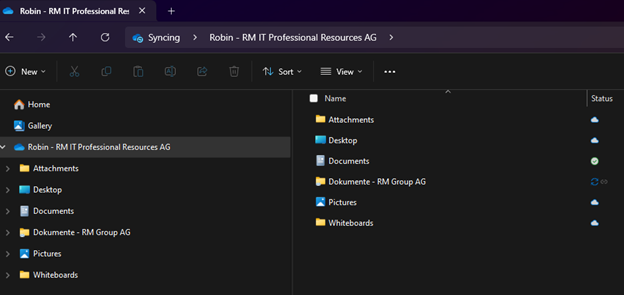
You can now see the Link “Documents – RM Group AG”
Click on the folder to see the channels of this team. You will find the documents of each channel by clicking on the channel folder.
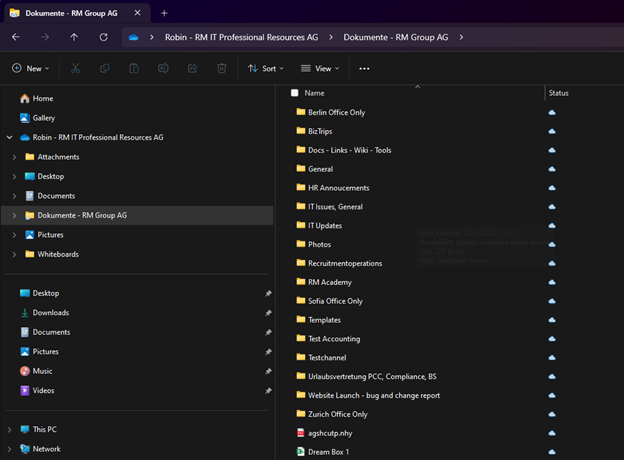
This procedure can be repeated for each file location or team, we recommend doing this step for each team you need to work with files.
Was this article helpful?
That’s Great!
Thank you for your feedback
Sorry! We couldn't be helpful
Thank you for your feedback
Feedback sent
We appreciate your effort and will try to fix the article